
Photoshop Cutout and Background Replacement Tutorial Guide
EN
English Prompt
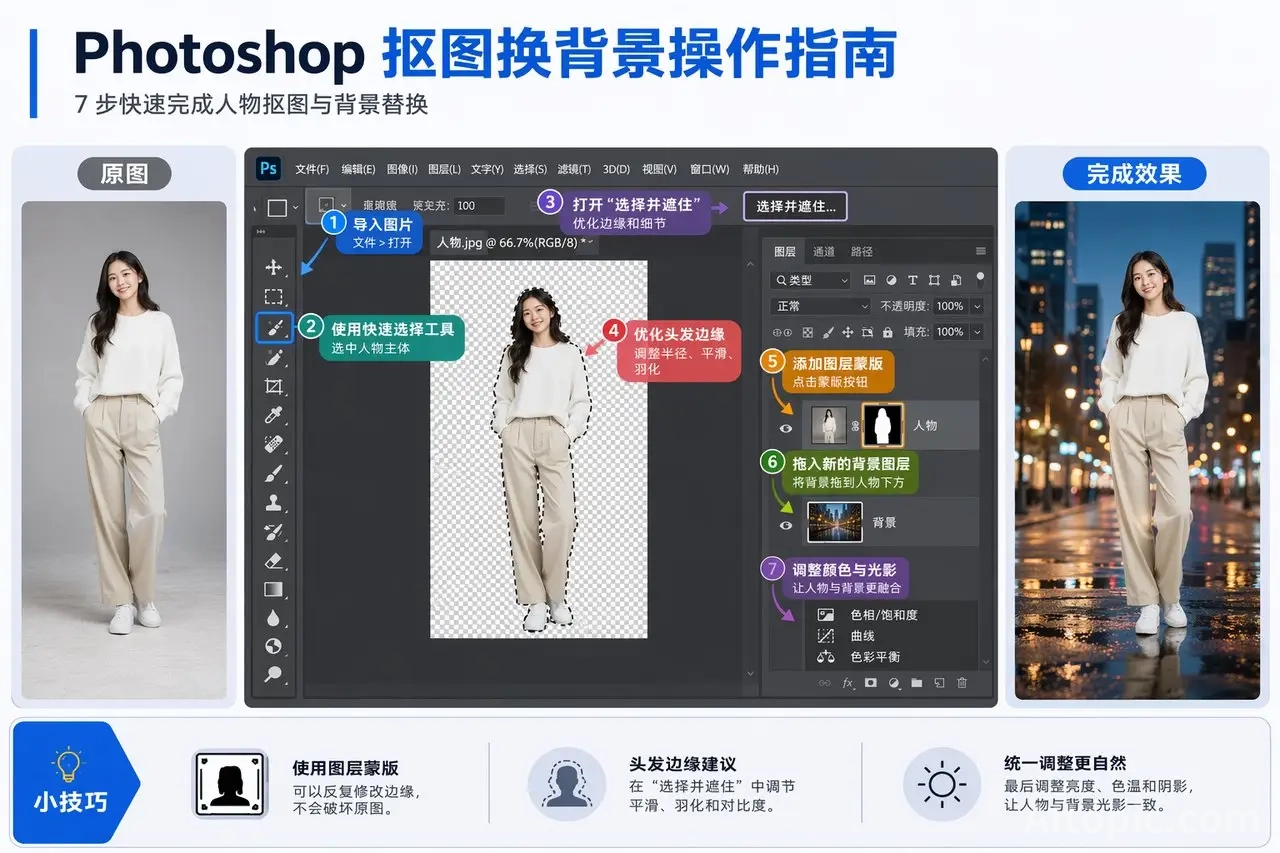
Software operation guide. A high-quality software operation guide infographic with the theme "How to Quickly Cut Out and Replace Background in Photoshop." The overall style blends a professional design tutorial page, a knowledge-based short video cover, and a high-quality operation guide—clean, modern, practical, and easy to understand. Horizontal layout, clear information hierarchy, resembling a Chinese tutorial infographic ready to be published. 4K, ultra-high definition, text crystal clear, structure complete.
The image is divided into three major areas: left, center, and right.
Left area: Display the "Original Image," which is a full-body standing portrait photo with an ordinary background, serving as the material to be processed. Title text: Original Image. It can have a light border or a clean card-style layout, clean and clear.
Center area: Display the Photoshop software interface, classic dark gray PS workspace style, including the top menu bar, left toolbar, central canvas area, and right layers panel. Within the interface, highlight the cutout-related tools and panels with emphasis, using arrows, numbered markers, and short English labels for explanation, resembling a real tutorial screenshot. The following steps and buttons must be highlighted:
Step 1: Import Image
Step 2: Use Quick Selection Tool to Select the Subject
Step 3: Open "Select and Mask"
Step 4: Refine Hair Edges and Subject Outline
Step 5: Add a Layer Mask
Step 6: Drag in a New Background Layer
Step 7: Adjust Subject and Background Color and Lighting
Each step is accompanied by a small numbered dot and a clean arrow, with short and clear English descriptions. No large blocks of text.
Right area: Display the "Final Result Image," where the subject has been successfully cut out and placed into a new premium background, such as a city nightscape, a dreamy forest, or a clean commercial backdrop, with the overall effect being noticeably more refined. Title text: Final Result.
A "Quick Tips" section can be added at the bottom, using small icons and short phrases to explain:
Use layer masks to repeatedly modify edges
Hair edges are recommended to be fine-tuned in "Select and Mask"
Finally, uniformly adjust brightness, color temperature, and shadows for a more natural look
At the top of the entire image, add the main title:
Photoshop Cutout and Background Replacement Operation Guide
Subtitle:
Complete Subject Cutout and Background Replacement in 7 Quick Steps
Text requirements: All text must be in English, using a clean, modern font similar to those used on design tutorial covers. All labels must be clearly readable, free of artifacts, and free of typos. The title should be eye-catching, steps clearly organized, descriptions short, with no crowded text.
Visual requirements: The overall look should resemble a high-quality PS tutorial page, combining both a software interface feel and infographic design sense. The layout is clear, steps are explicit, and colors are restrained. The Photoshop interface is realistic, with the toolbar and layers panel laid out reasonably, and arrows and highlight annotations professional. It should not look like a randomly assembled screenshot or a generic PowerPoint slide.
CN
Chinese Prompt
软件操作指导
一张高质量软件操作指导图,主题为“如何在 Photoshop 中快速抠图并更换背景”。整体风格像专业设计教程页、知识类短视频封面和高质量操作指南的结合,清晰、现代、实用、易懂。横版排版,信息层级明确,像一张可以直接发布的中文教程信息图。4K,超清,文字清晰,结构完整。
画面分为左中右三大区域:
左侧区域:
展示“原始图片”,是一张人物站立照片,背景较普通,作为待处理素材。
标题文字:原图
可以有一个浅色边框或简洁卡片样式,干净清晰。
中间区域:
展示 Photoshop 软件界面,深灰色经典 PS 操作界面风格,包含顶部菜单栏、左侧工具栏、中央画布区、右侧图层面板。界面中重点高亮抠图相关工具和面板,使用箭头、编号和中文短标签进行说明,像真实教程截图。
必须突出这些步骤和按钮:
步骤1:导入图片
步骤2:使用快速选择工具选中人物
步骤3:打开“选择并遮住”
步骤4:优化头发边缘与主体轮廓
步骤5:添加图层蒙版
步骤6:拖入新的背景图层
步骤7:调整人物与背景颜色和光影
每个步骤配一个小编号圆点和简洁箭头,中文说明短而清晰,不要大段文字。
右侧区域:
展示“最终效果图”,人物已经被成功抠出并放入新的高级背景中,比如城市夜景、梦幻森林或简洁商业背景,整体效果明显更精致。
标题文字:完成效果
底部可增加一个“小技巧”区域,用小图标和短句说明:
使用图层蒙版可以反复修改边缘
头发边缘建议在“选择并遮住”中微调
最后统一调整亮度、色温和阴影更自然
整张图顶部加入大标题:
Photoshop 抠图换背景操作指南
副标题:
7 步快速完成人物抠图与背景替换
文字要求:
所有文字均为中文,字体简洁现代,像设计类教程封面常用字体。所有标签必须清晰可读、无乱码、无错别字。标题醒目,步骤清楚,说明简短,不拥挤。
视觉要求:
整体像高质量 PS 教程页,既有软件界面感,也有信息图设计感。版面清楚、步骤明确、颜色克制。Photoshop 界面真实,工具栏和图层面板布局合理,箭头和高亮标注专业。不要像随便拼接的截图,不要像普通PPT。
Comments & Questions (0)
No comments yet
Be the first to comment!